How it works
How to convert a picture to Game Boy Color sprites and tiles (free tool)
Short answer: to convert a picture to a Game Boy Color sprite, open the free GBC sprite converter, drop your picture in, choose Sprite or Background and a size, and download the result. The converter cuts out the background, shrinks the picture to whole 8 x 16 or 8 x 8 objects, and fits its colors into the console's 4-color palettes. It all happens in your browser, so nothing is uploaded.
On this page
What the tool is
The GBC sprite converter is free. There is no account, it costs no gems, and the picture never leaves your computer. It is not a lookalike: it is the Shiny Gen engine's own C++, the same code the cartridge build runs when a Shiny Gen game imports a picture, compiled to WebAssembly so it runs in the page.
You can drop, paste or pick any picture the browser can open, at any size. Very large pictures are read at no more than 2048 pixels on a side. If you have nothing handy, the page has four samples: Photo, Drawing, Pixel art and Landscape.
Step by step
1. Add a picture
Drop a file on the box at the top left, paste one, or tap a sample.
2. Choose the settings
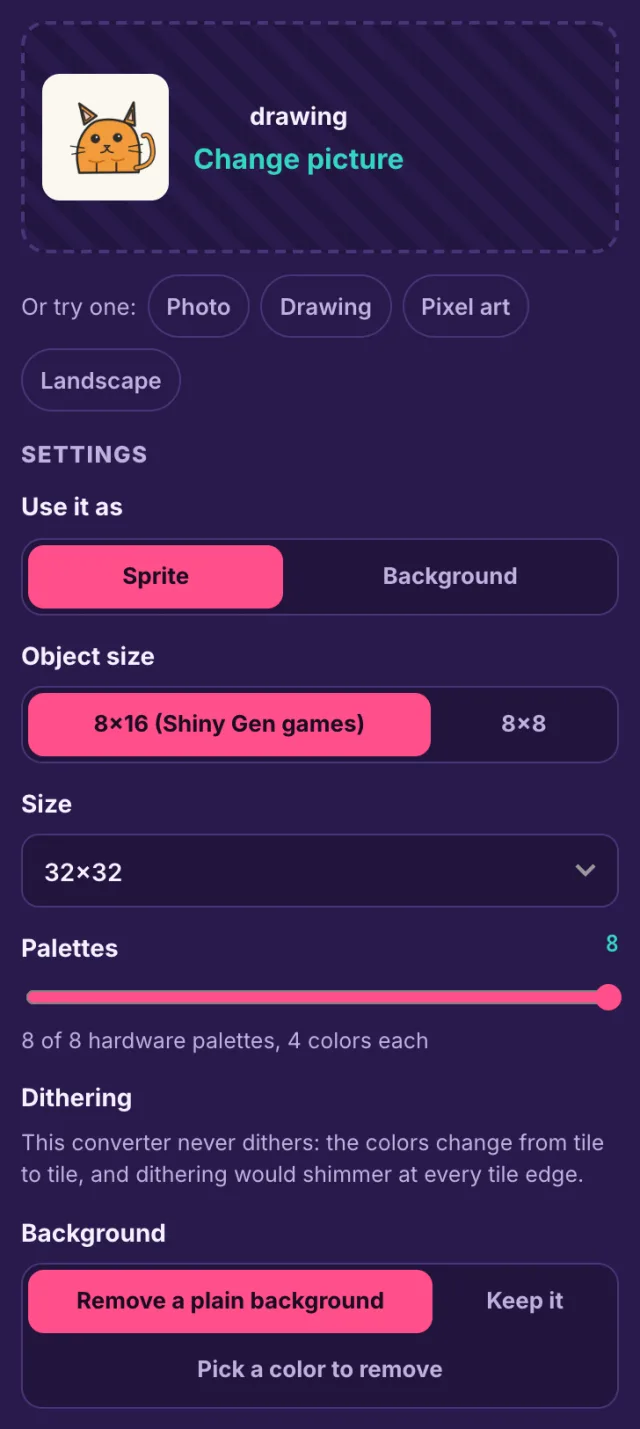
- Use it as: Sprite or Background. A sprite becomes hardware objects with a transparent color 0. A background becomes a tile map.
- Object size: 8x16 or 8x8. 8 x 16 is what Shiny Gen GBC games use, so it is the default.
- Size. In 8 x 16 mode a sprite can be 8x16, 16x16, 16x32, 24x32, 32x32, 32x48, 32x64, 48x64 or 64x64. In 8 x 8 mode it can be 8x8, 16x16, 24x24, 32x32 or 48x48, because anything larger would pass 40 objects. For a background the sizes are 160x144 (the screen), 256x256 (the full 32 x 32 tile map), 128x128 and 80x72.
- Palettes, 1 to 8. Each 8 x 8 tile of a background, or each object of a sprite, uses one palette of 4 colors. A sprite's color 0 is transparent, so every object has 3 visible colors. Colors are 15-bit.
- Dithering. There is none, by design. The colors change from tile to tile, and dithering would shimmer at every tile edge.
- Background. "Remove a plain background" cuts out a plain border color with the site's own cut-out, though pixel art keeps its frame. "Keep it" leaves the picture alone. "Pick a color to remove" lets you tap the picture and set a tolerance slider.
Every setting offered is one the console can do. If you ask for something impossible, the tool moves it to the nearest legal value and tells you. If a size cannot hold the picture because it needs too many unique tiles, it steps down to the next size and says so.
3. Read the "What it uses" meters
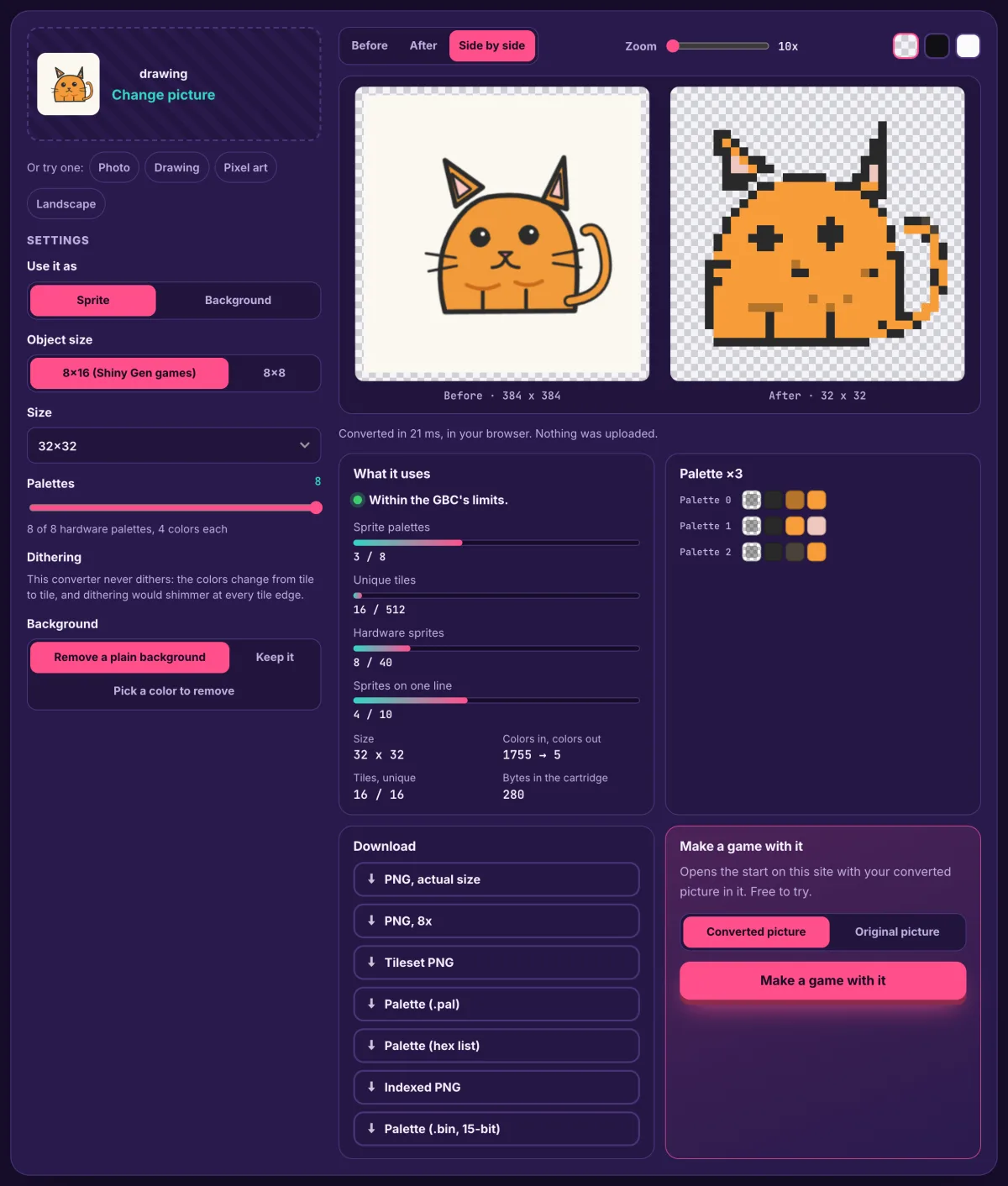
A green dot and "Within the GBC's limits" means the result is legal. The bars are:
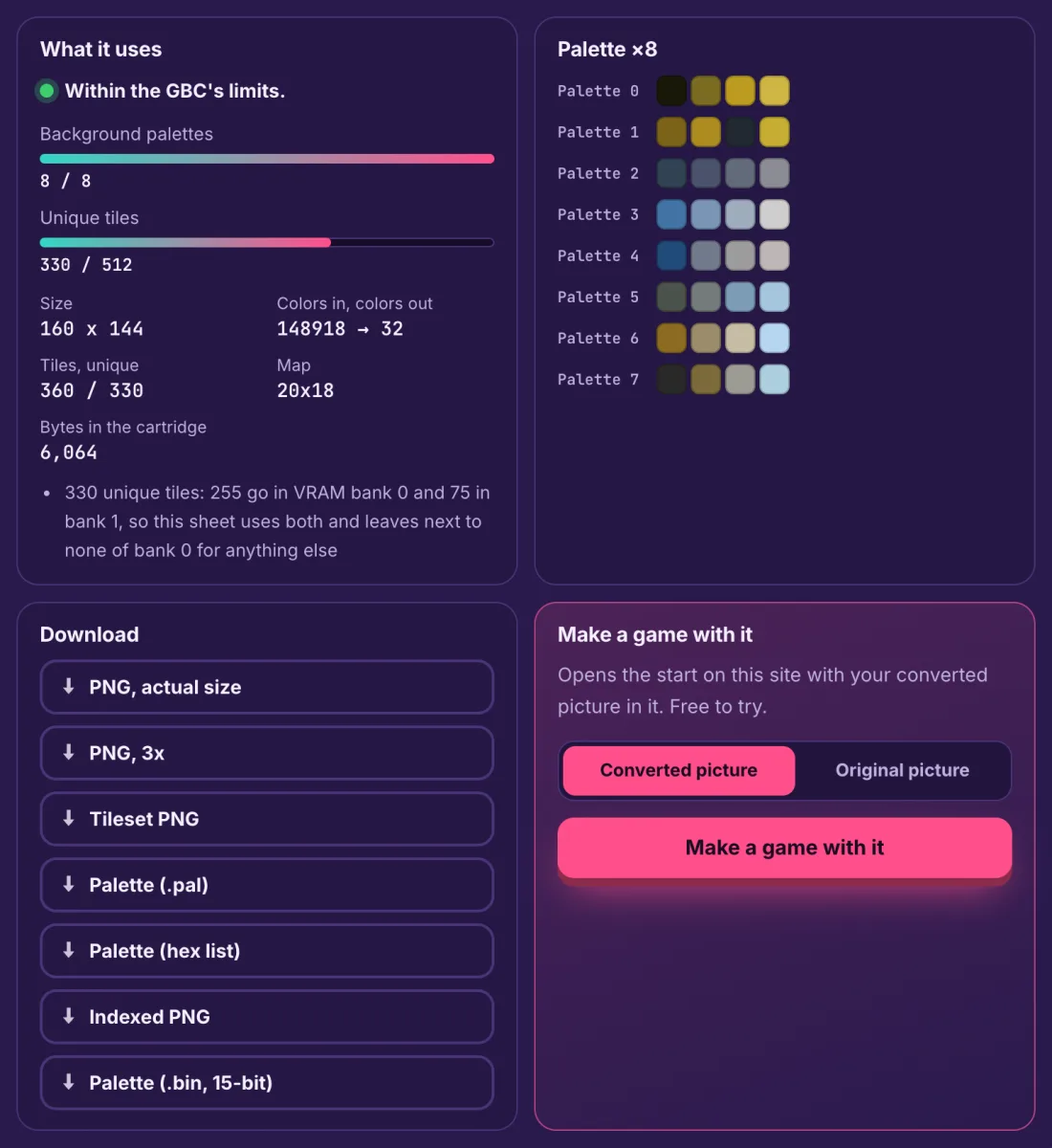
- Sprite or Background palettes, x of 8.
- Unique tiles, x of 512. Duplicate and mirrored tiles are shared through the flip bits, so only different tiles count.
- Hardware sprites, x of 40, and Sprites on one line, x of 10, for sprites.
Below the bars come the size, the colors in and colors out, the tiles and the bytes the picture would take in a cartridge. When a background needs more than one VRAM bank, the panel says so. The palettes are shown as swatches, and clicking a swatch copies its hex value.
4. Check the result
Use Before, After or Side by side, the zoom (nearest neighbor, so pixels stay sharp) and the checkerboard, dark and light backgrounds. The result is also checked: it goes back through the cartridge import unchanged.
5. Download
- PNG, actual size and PNG, scaled (2x to 8x)
- Tileset PNG: the unique 8 x 8 tiles, 16 to a row
- Palette (.pal) in JASC format, and Palette (hex list)
- Indexed PNG: palette k uses entries 4k to 4k+3
- Palette (.bin, 15-bit): little-endian 15-bit words
- For a 16 x 16 sprite with one palette, a GB Studio sprite PNG in GB Studio's own sprite colors (#071821, #86c06c, #e0f8cf), with #65ff00 as transparent, as its docs describe at gbstudio.dev/docs/assets/sprites
The console's rules the tool keeps
| Rule | Limit |
|---|---|
| Colors | 15-bit, 4 colors in a palette |
| Palettes | Up to 8 for sprites, up to 8 for the background |
| Sprite color 0 | Transparent, so 3 visible colors per object |
| Objects in a frame | Up to 40, and up to 10 on one line |
| Unique background tiles | Up to 512 (256 in each of 2 VRAM banks) |
| Repeated tiles | Duplicates and mirrors are shared |
| Dithering | None |
Tips: photos, drawings and pixel art
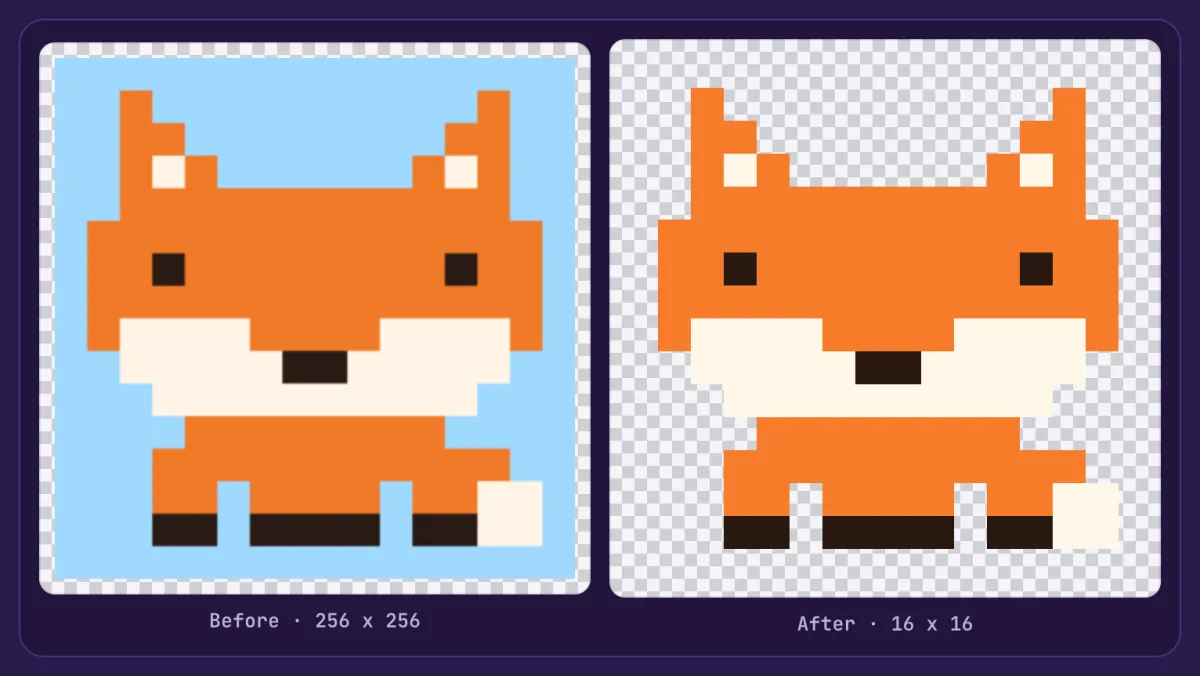
Pixel art is the easiest. A small pixel-art fox goes in as 256 x 256 and comes out at 16 x 16 with its sky removed and its colors untouched, because the art already fits.
Drawings with a plain background work well as sprites. The cat in the hero picture went from 384 x 384 to a 32 x 32 sprite: 1,755 colors became 5, split over 3 palettes, and 16 unique tiles were enough. Thick outlines and flat colors survive the shrink; thin whiskers and fine shading do not. If your drawing has a busy background, use "Pick a color to remove" and tap it.
Photos are best as backgrounds. A photo is center-cropped to the shape of the screen, never squashed, and the converter then fits it with 8 palettes of 4 colors.
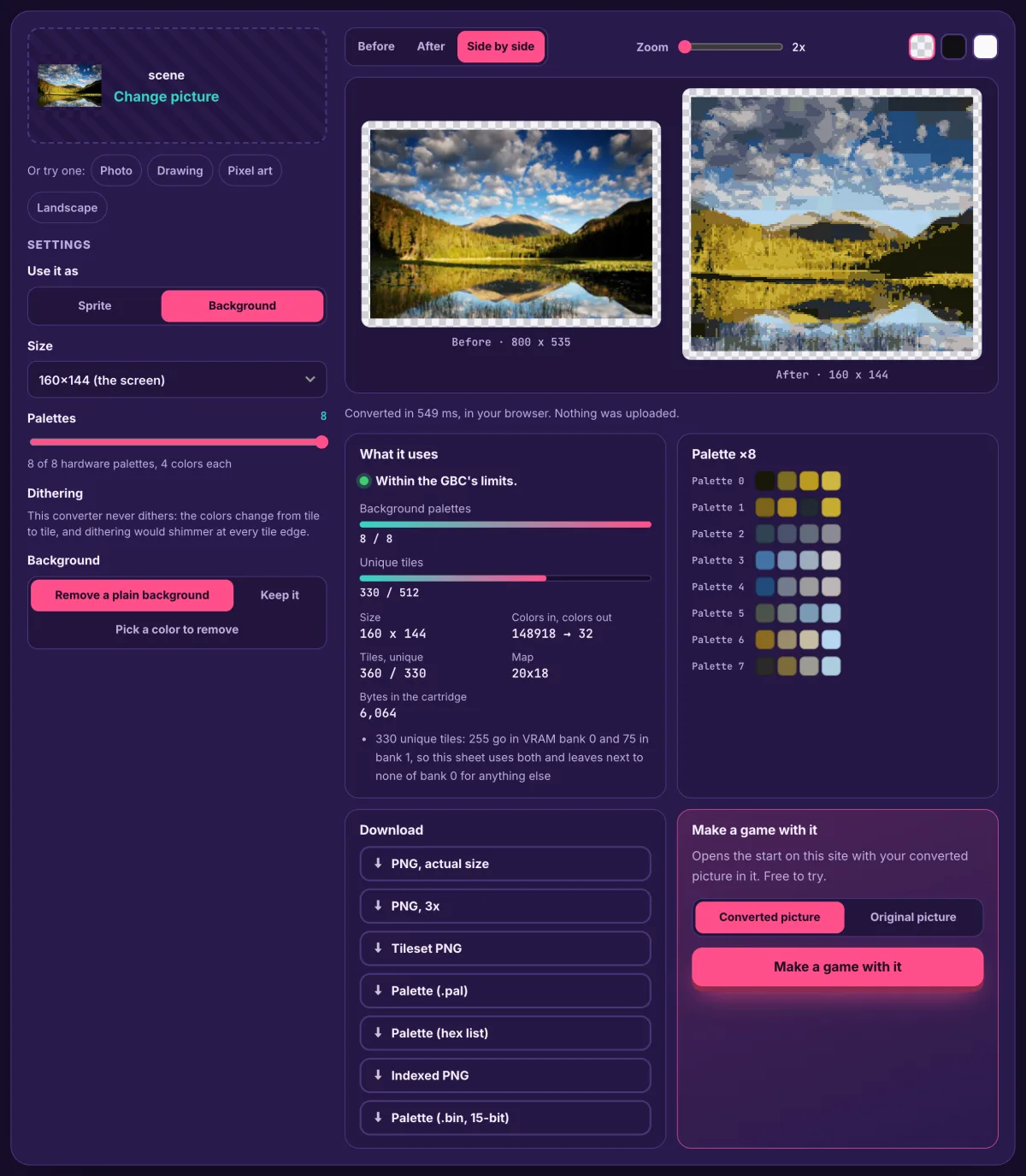
Expect the sky to break into tile-sized patches, because each 8 x 8 tile only gets one palette of 4 colors. A photo with strong shapes and a few dominant colors looks better than one full of soft gradients.
Make a game with it
Under the downloads, "Make a game with it" opens this site's start card with your converted picture in it, or the original if you choose "Original picture". You then pick what the picture becomes, add a few words about the game and press the button; an AI agent builds a Game Boy Color game around your picture. This is a Shiny Gen account on the site, and a new account starts with free gems. Nothing is sent anywhere until you press that button.
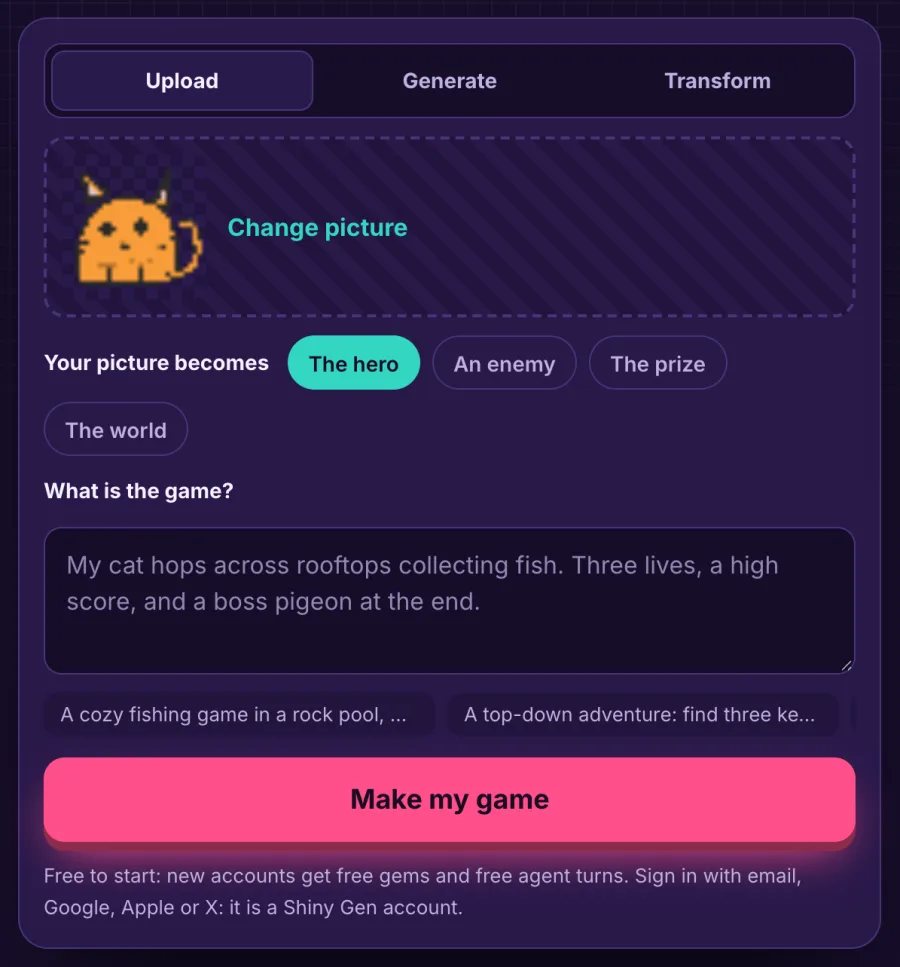
For that part, read Turn a picture into a Game Boy Color game or Shiny Gen's Make a GBC game with AI. To build the game yourself, see img2gbc vs GB Studio.
How we know it is right
The converter is tested against the engine. 172 cases (4 pictures with 43 settings) give byte-identical results to the engine, and 92 of them were re-imported through the cartridge import unchanged. A sweep of 1,836 conversions across every setting extreme of the 5 consoles stays inside every hardware limit.
Ready to try? Open the free GBC converter and drop a picture in.
FAQ
Is the Game Boy Color sprite converter really free?
Yes. There is no account, it costs no gems. It runs in your browser.
Is my picture uploaded?
No. The conversion runs in the page. The only time a picture is sent is when you press "Make a game with it", and only then.
What size should my sprite be?
For a character, 16x16 or 16x32 is a good start, and 32x32 gives more room for detail. Bigger sprites use more of the 40 objects and the 10 per line. The "What it uses" meters tell you how close you are.
Why does my photo look blocky?
Each 8 x 8 tile can only use one palette of 4 colors, and the converter does not dither. A photo with soft gradients turns into patches of color. Try a picture with strong shapes, or a drawing.
Can I use it for a game that is not made on Shiny Gen?
Yes. The downloads are ordinary PNG and palette files, and they are yours to use in your own project.
Further reading
Last updated: November 17, 2026