How it works
How to turn a picture into a Game Boy Color game
To turn a picture into a Game Boy Color game, open img2gbc.com, drop in your picture (or have the built-in image models draw one), choose what it becomes in the game (the hero, an enemy, the prize or the world), and write one or two sentences about the game. Press Make my game, sign in, and an AI agent puts your picture on a real Game Boy Color cartridge as a sprite, writes the game around it, plays it to find its own bugs, and hands you a game that runs right in the browser tab.
Also in: Español · Deutsch · Français · Português · Italiano · Nederlands · Svenska · Norsk · Bahasa Indonesia · Türkçe · Polski · Tiếng Việt · Русский · 日本語 · 한국어 · 繁體中文
On this page
It is free to start: new accounts get free gems and free agent turns, and a picture start used 10 gems in our sessions. This guide walks through each step with screenshots of the real site, then covers what you get, the console's limits and the questions people ask.
Step 1: bring a picture
The start card has three ways in. Pick whichever matches what you have.
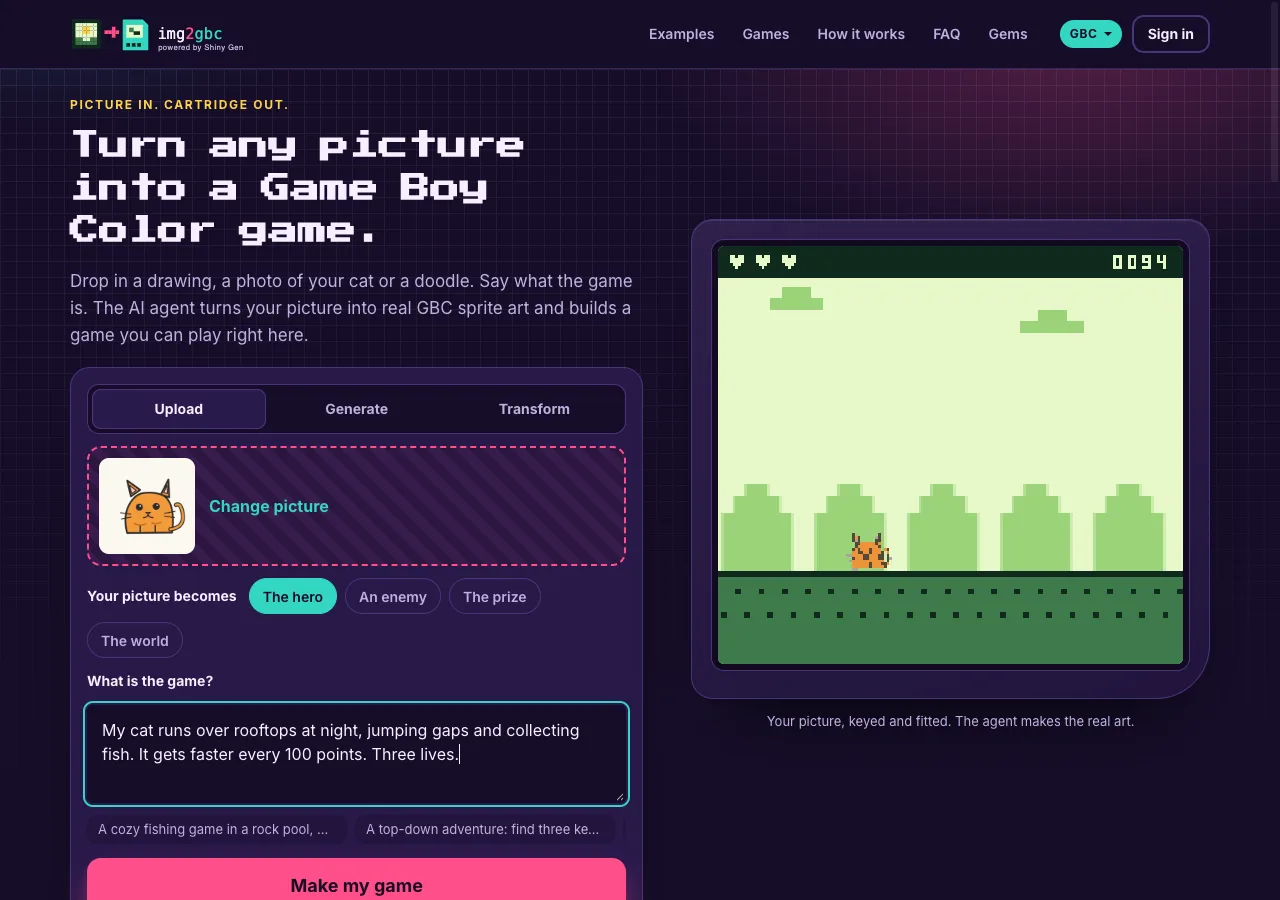
- Upload. Drop a PNG, JPG or WebP on the card, pick one, or paste one. A drawing, a photo of your pet, a toy, a doodle or a logo all work. One clear subject on a plain background works best, because the site can then cut the subject out before the agent ever sees it, so no gems go on background removal.
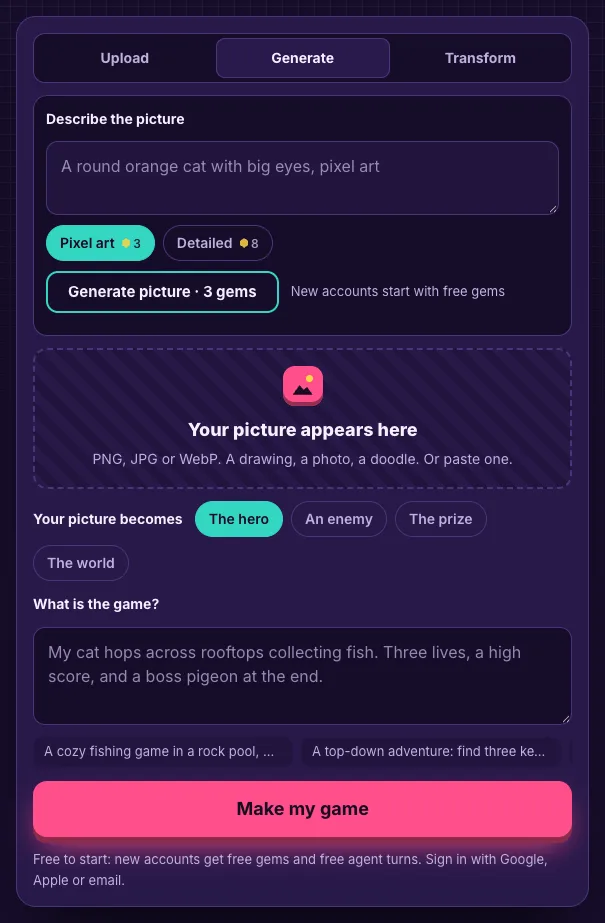
- Generate. No picture yet? Describe one and the site draws it with Shiny Gen's own image models: Pixel art costs 3 gems and Detailed costs 8. For a hero, enemy or prize the site asks the model for one character, full body, centered on a plain white background, so the cut-out works.
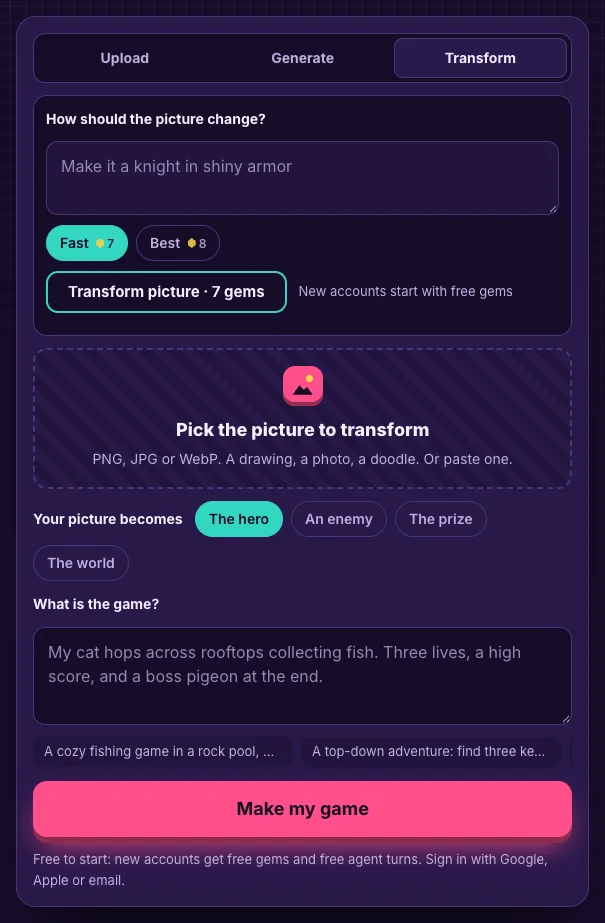
- Transform. Have a picture but want it different? Pick it, say how it should change ("make it a knight in shiny armor"), and the image models redraw it from your picture: Fast costs 7 gems and Best costs 8.
Every generation shows its gem price on the button before it runs, and gems are only charged when the picture arrives.
Step 2: say what the picture becomes
Under the picture, choose its role:
- The hero: the character you play. The agent is told to import your picture as it is, as a 16 x 16 sprite, and to bring it to life in code (a bob, a squash on landing, flipping to face where it runs) instead of redrawing it.
- An enemy: the main thing chasing or fighting you, also a 16 x 16 sprite.
- The prize: the item you collect.
- The world: your picture becomes the background, fitted to the 160 x 144 screen and the Game Boy Color's background palettes, and the rest of the game's colors are picked from it. Busy photos of whole scenes work better here than as a hero.
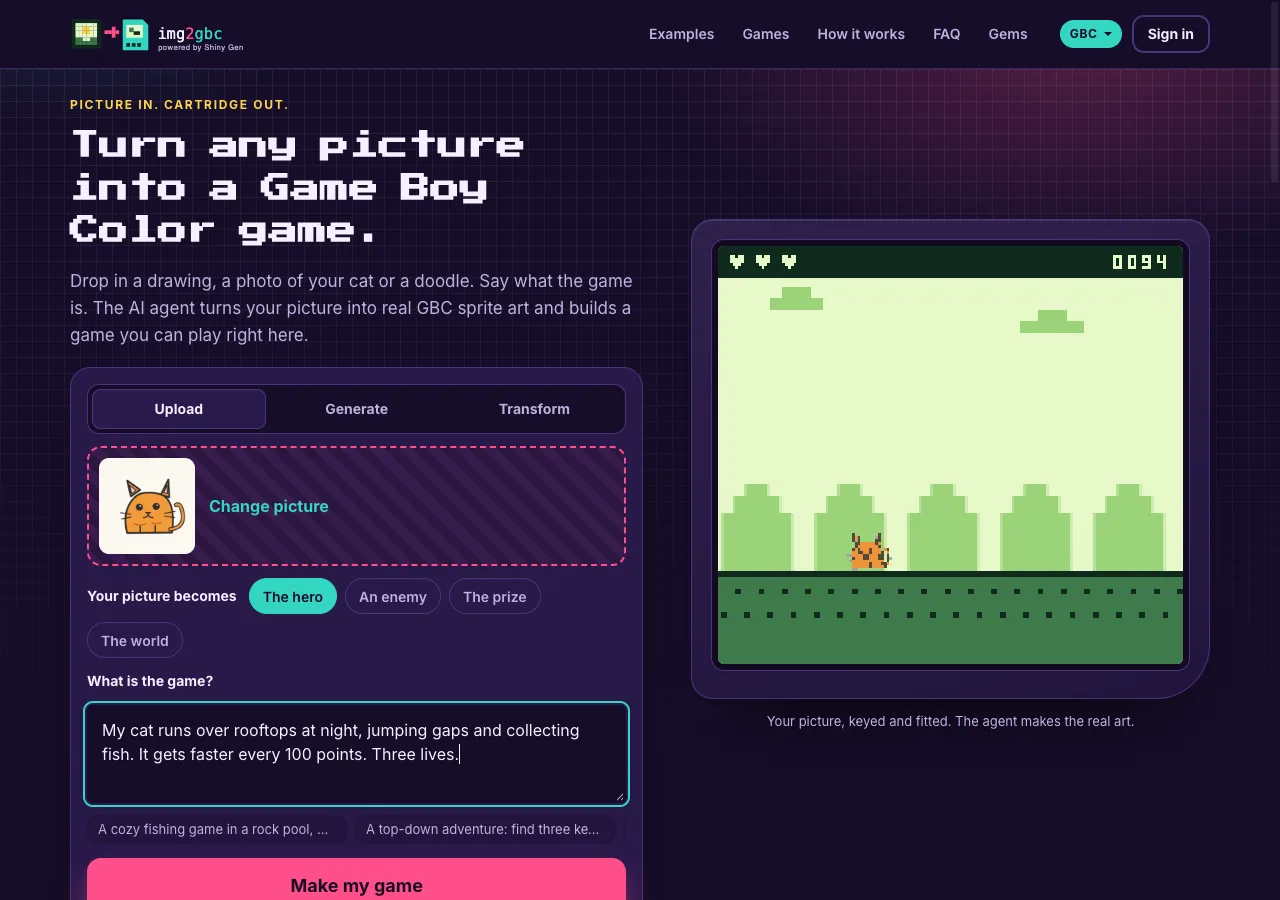
As soon as a picture is on the card, the preview on the right draws it on a 160 x 144 screen in the console's colors, so you see roughly how much survives before you spend anything. The agent makes the real art on the cartridge.
Step 3: describe the game
One or two sentences is enough. Say what the player does, how you win, and what goes wrong. The suggestions under the box are real starting points ("A top-down adventure: find three keys and open the lighthouse"), and you can tap one.
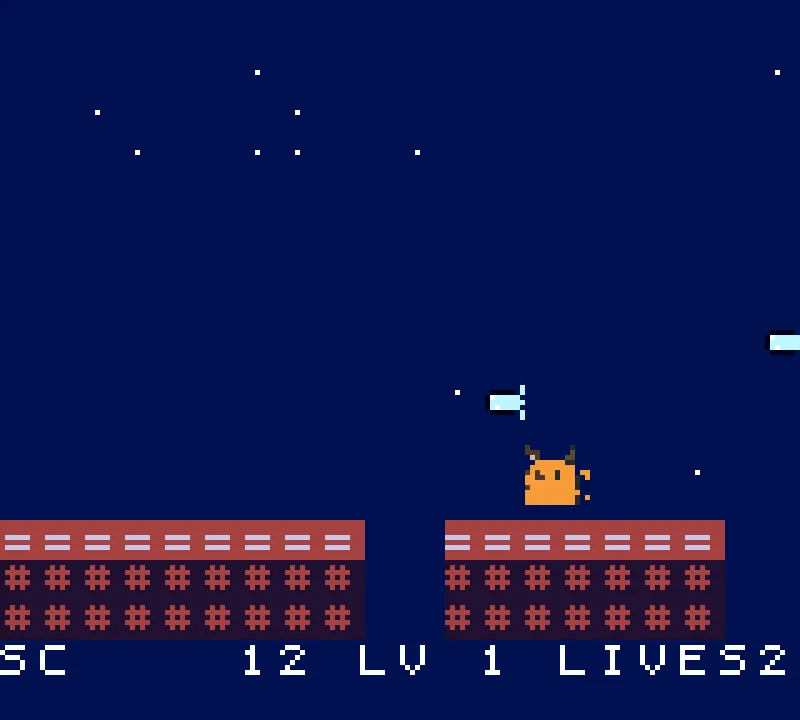
Good first prompts name a genre the Game Boy Color is good at: platformers, endless runners, top-down adventures, puzzle games, arcade shooters, small fighters. "My cat runs over rooftops at night, jumping gaps and collecting fish. It gets faster every 100 points. Three lives." is a complete prompt.
Step 4: sign in and watch the agent build
Press Make my game. If you are not signed in, the sign-in opens on the same page (Google, Apple or email), and the studio opens on img2gbc.com itself, already set to the Game Boy Color engine. In our sessions the agent was working 10 to 20 seconds after the press.
The agent then does what a Game Boy Color programmer would. It imports your picture into the cartridge, reads the engine's reference, writes the game in a small C-like language and compiles it to the Game Boy Color's own machine code. Then it plays its own build: it presses the buttons, takes screenshots of the 160 x 144 screen and fixes what is broken. You can read along in the chat while it works.
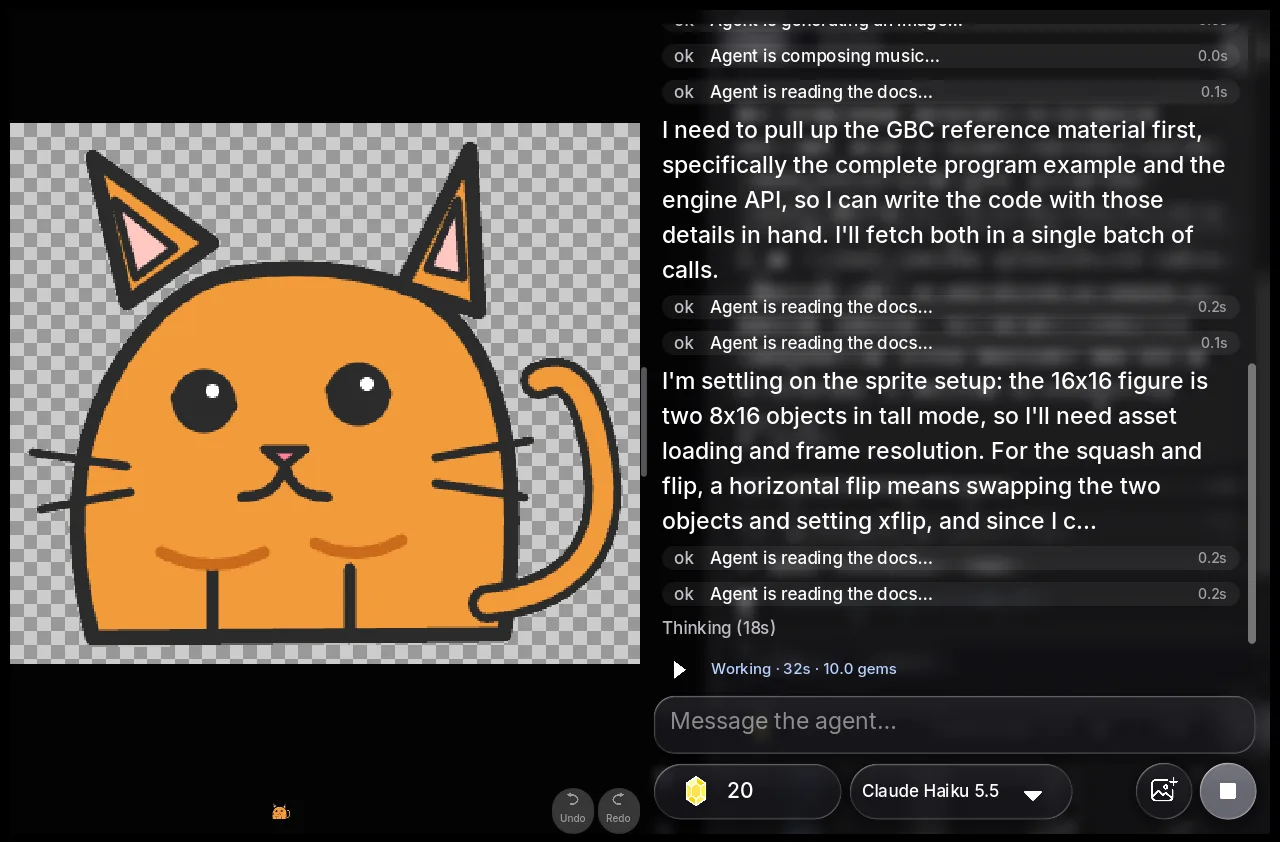
When it is done, it tells you how to play and what it did and did not test. Our first sessions took between about 1 and 4 minutes of agent time and 10 gems each.
Step 5: play it, then change it by chat
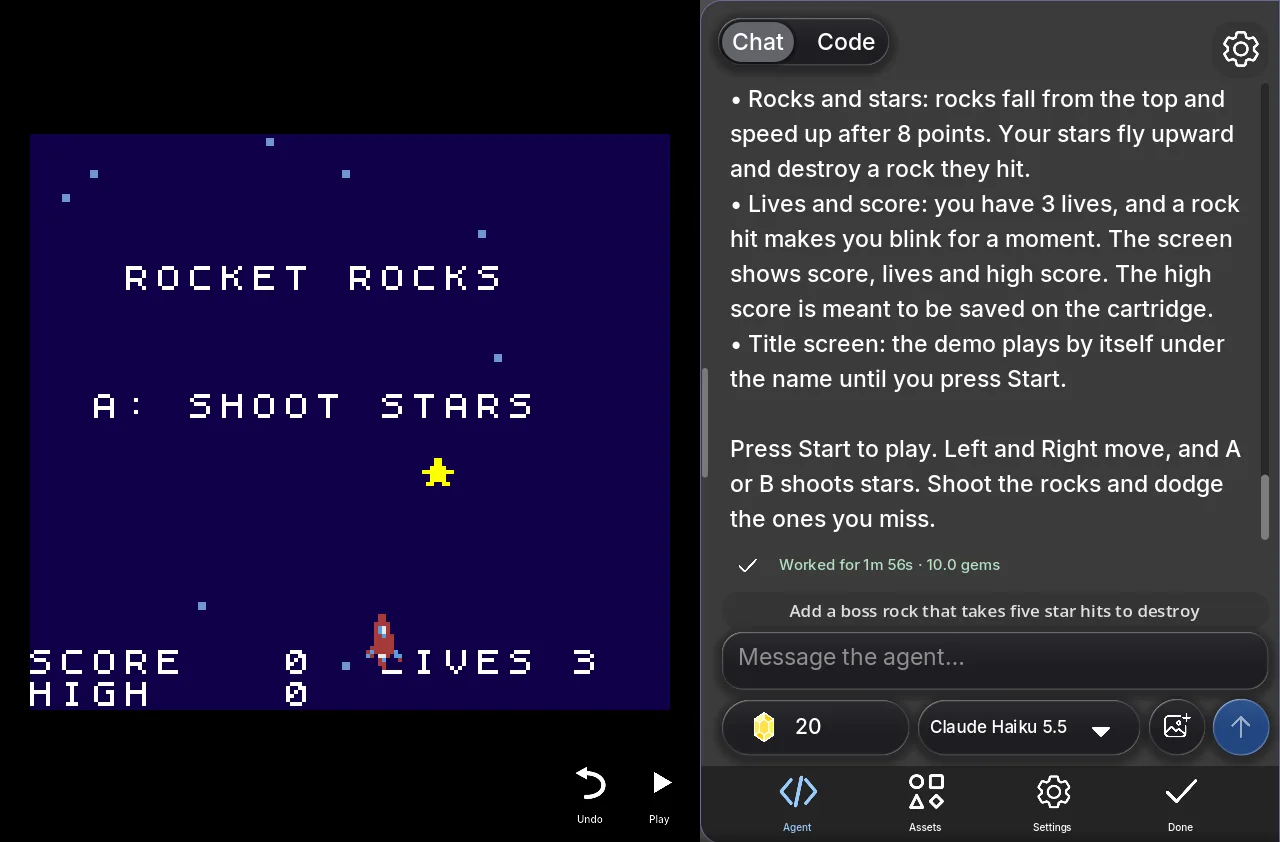
The game is already running when the agent hands over. On a computer the keyboard plays it (arrow keys, Z for A, X for B, Enter for Start); on a phone or tablet the buttons are on screen.
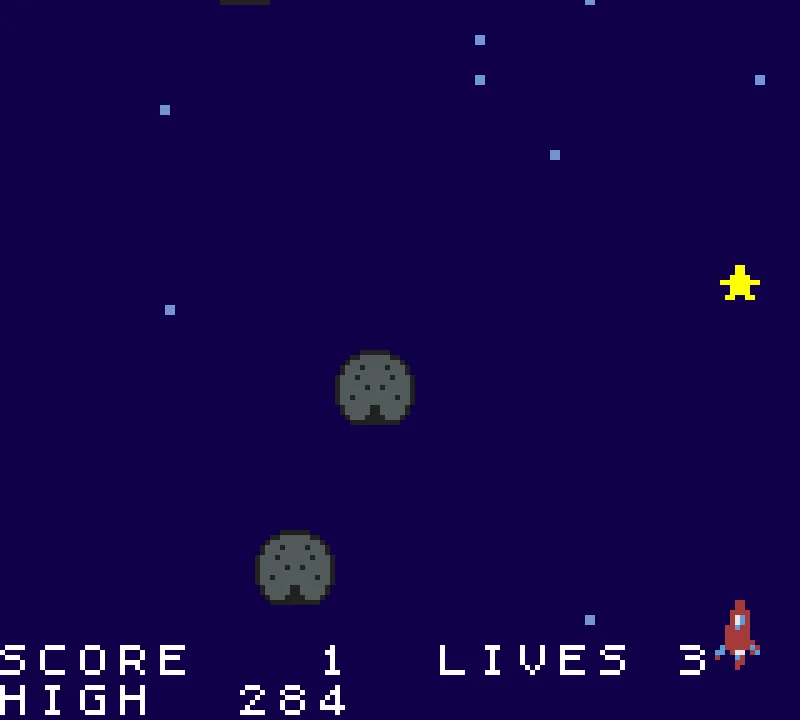
Then keep talking to it in the same chat. Small, specific requests work best: "add a boss rock that takes five hits", "make the cat jump higher", "the score on the title screen is jumbled, fix it". Say what you saw rather than guessing at the cause; the agent can reproduce it by playing. You can also open the Code view and edit the game yourself, which costs nothing.
What you get
- A real Game Boy Color cartridge. Not a filter and not a video. The game you play in the tab is the cartridge.
- A game in your Shiny Gen account. Your img2gbc account is a Shiny Gen account, so the game is also in your games in the Shiny Gen apps for iPhone, iPad and Android.
- A share link. Share it and the link stays on img2gbc.com; anyone with it can play in their browser, and people can remix it into their own copy if you allow that.
- A .gbc ROM, when you want one. Any one purchase, from a $2.99 starter pack, unlocks exporting the ROM. It runs in Game Boy Color emulators and on real hardware through a flash cart, and it declares a 32 KB battery save. The ROM export guide on shinygen.ai covers the file in detail.
What the Game Boy Color can and cannot do with your picture
The cartridge is bound by the real console, and that shapes how your picture comes out:
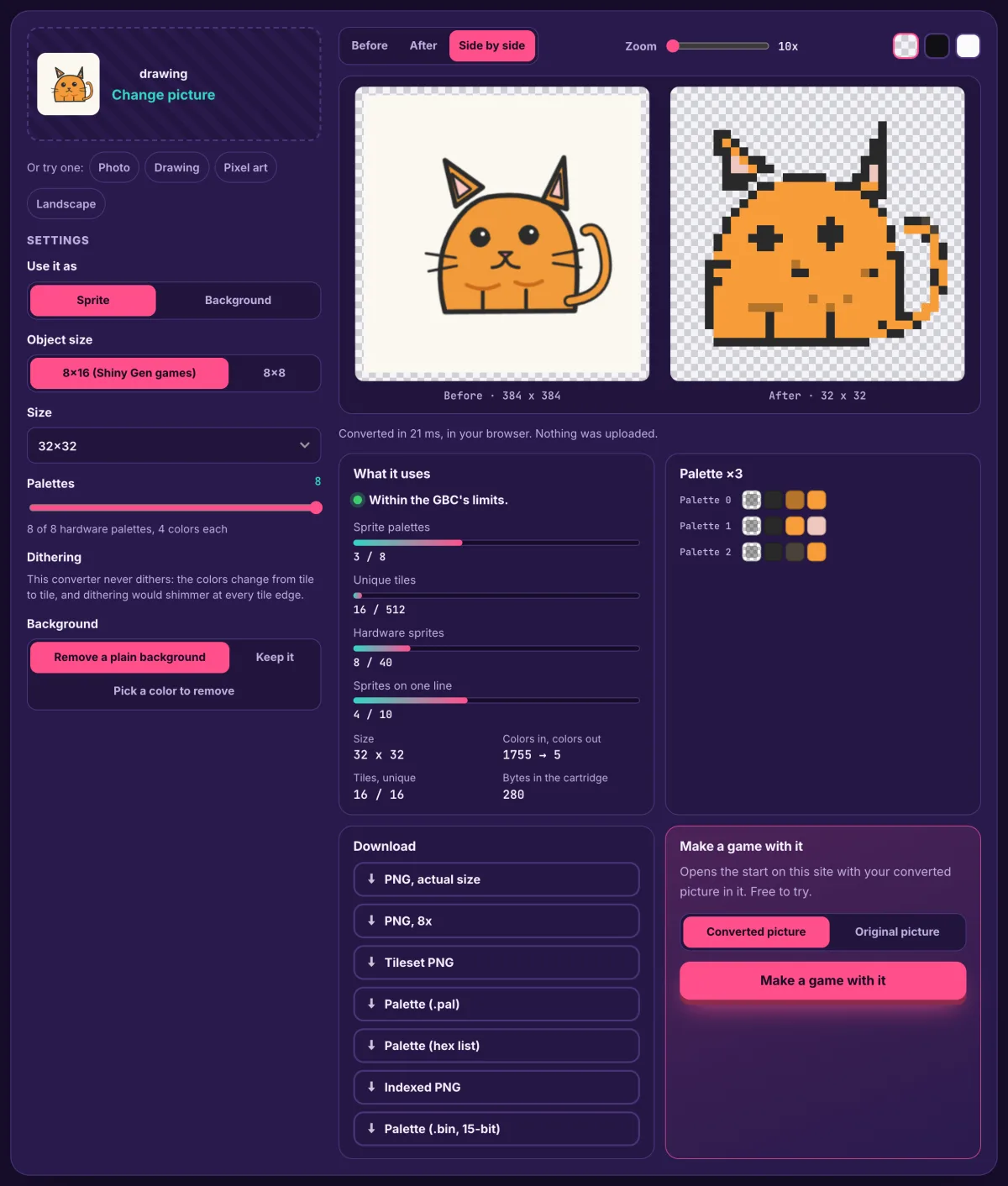
- Small. A hero or enemy becomes a 16 x 16 sprite on a 160 x 144 screen. One subject on a plain background, a thick outline and two or three main colors survive best; fine detail and soft shading are simplified, and busy scenes read better as the world.
- Few colors. Sprites use palettes of four colors, one of them transparent, so a sprite keeps three visible colors. There are eight sprite palettes and eight background palettes.
- Few sprites. 40 on screen at once, at most ten on one line.
- 2D only. For 3D, the same studio makes N64 and GameCube games, and img2gba.com makes Game Boy Advance games with 32 x 32 sprites and 15 colors.
FAQ
Is it really free?
Making, playing and sharing games is free, and new accounts get free gems and free agent turns. A picture start used 10 gems in our sessions. More agent work, image generation and music use gems, sold in packs from $2.99 that never expire. Prices are on the Gems page.
Do I need to know how to code or install anything?
No. The site, the studio, the compiler and the emulator run in your browser on a computer, phone or tablet. You describe the game; the agent writes and tests the code.
Will the game use my actual picture or a redrawn one?
Your picture. The agent is told to import it as it is and not to redraw it; the cartridge only scales it down and fits it to the console's colors. In our sessions the cat, the rocket and the knight that went in were the sprites in the game.
How long does it take?
In our sessions, the agent took between about 1 and 4 minutes for a first version you can play, and started 10 to 20 seconds after Make my game.
Can I put the game on a real cartridge?
Yes. Export the .gbc ROM (any one purchase, from $2.99), copy it to a flash cart, and play it on hardware that runs Game Boy Color cartridges, or open it in any GBC emulator.
What if I do not have a picture?
Use Generate to make one from words (3 or 8 gems), or start from one of the example games and remix it.
Further reading
Last updated: November 17, 2026